In this article
- What n8n is
- The basic mental model
- What n8n is good at
- The UI things that are obvious only after you use it
- The Wait node is where callbacks start to make sense
- How Automation Receipts fits beside n8n
- The tested n8n and Automation Receipts callback flow
- What can you connect n8n to?
- n8n pricing and self-hosting
- Competitors and alternatives
- Things I liked
- Things that confused me at first
- Screenshot notes for the final article
- Final thoughts
Most automation tools sound obvious until you try to use them for real work. The demo version is always clean: when this happens, do that. The real version usually has a few more moving parts. You want the workflow to receive something, clean up the data, call another service, maybe ask an AI model to draft or classify something, pause for a human, and then keep going after someone has checked the result.
That is where n8n started to click for me. I had looked at automation tools before, and I understood the basic idea, but n8n felt different once I used it with a real workflow. It wasn’t just “connect Gmail to Slack” or “send a row to a spreadsheet.” It was more like a proper automation workbench. I could put steps on a canvas, pass data between them, call an API, wait for a webhook callback, and inspect what happened at each stage.
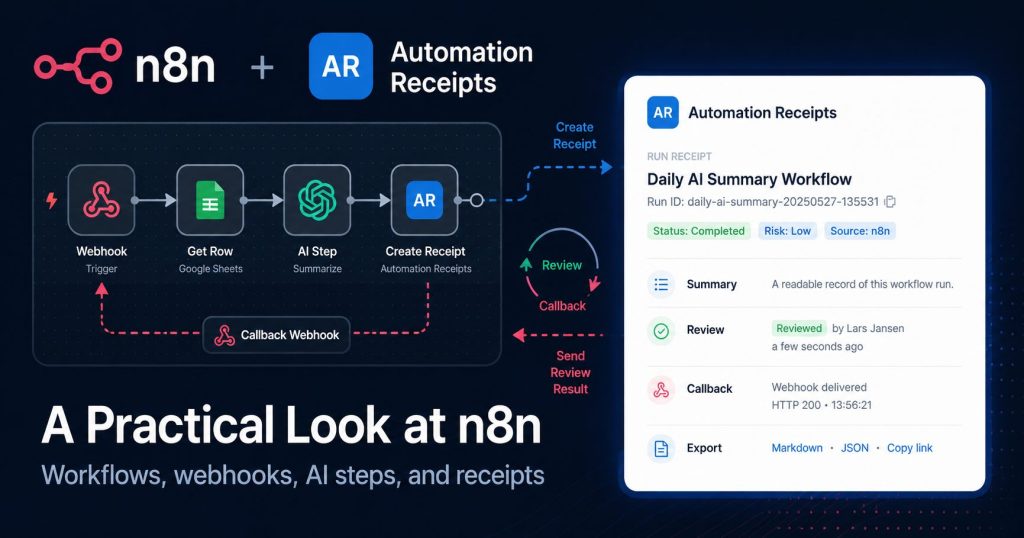
I tested n8n properly while working on Automation Receipts, and that turned out to be a useful way to understand both tools. n8n runs the workflow. Automation Receipts sits beside it and records a readable receipt of what happened. Once the callback feature landed, the flow became even more useful: n8n could create a receipt, pause, wait for a human review in Automation Receipts, then continue when Automation Receipts sent the review result back.
This article is my practical overview of n8n from that angle. It is not a complete n8n manual. It is a field note from using n8n for a real workflow, learning a few small UI habits, testing webhooks and Wait nodes, and working out where Automation Receipts fits beside it.
What n8n is
n8n is a workflow automation tool. You build workflows by connecting nodes on a visual canvas. A node can start the workflow, edit data, call an API, talk to a service like Google Sheets or Slack, run an AI step, branch based on a condition, or pause until something else happens.
The plain version is this: n8n lets you move work between tools without writing the whole thing as a custom application. It is not just a simple trigger-and-action tool, though. It gives you visual building blocks, but it still lets you get technical when you need to. You can use expressions, JSON, HTTP requests, webhooks, credentials, conditional logic, and custom API calls.
That makes it a nice fit for people who are comfortable enough with APIs to know what a POST request is, but who don’t want to hand-code every internal automation from scratch. You can start visually, then drop into the details when the workflow needs it.
The official n8n docs describe it as a way to automate workflows by connecting apps, APIs, and services, and n8n can be used through n8n Cloud or self-hosted depending on how much control you want over the environment. The official docs and pricing pages are worth checking before you build anything serious because hosting, plan limits, licensing, and pricing can change over time: n8n docs and n8n pricing.
The basic mental model
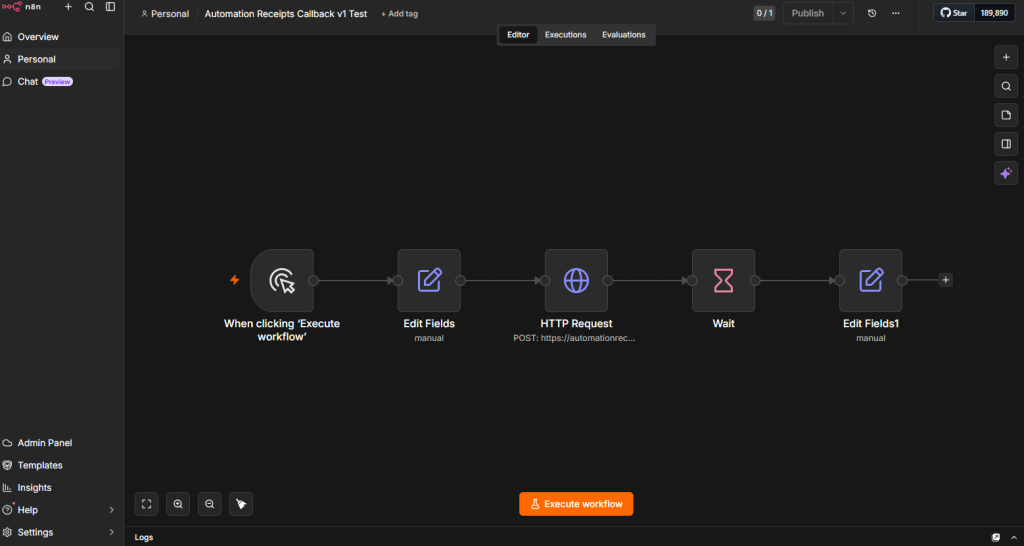
The easiest way to understand n8n is to think in runs. A workflow is the automation as a whole. An execution is one time that workflow runs. A node is one step inside that run. Data moves from node to node, and each node can inspect, transform, send, wait, or branch based on that data.
A simple workflow might look like this:
Manual Trigger
↓
Edit Fields
↓
HTTP Request
↓
Wait
↓
Show Result
That’s close to the test workflow I used with Automation Receipts. The Manual Trigger starts the run. Edit Fields creates some test data. HTTP Request sends a receipt to Automation Receipts. Wait pauses the workflow until Automation Receipts calls back. Show Result displays the review decision that came back from the receipt.
Once you understand that data is moving through the canvas, the UI makes a lot more sense. You are not filling out a magic form. You are building a chain of small steps, and every step has input and output. When something goes wrong, the first question is usually not “why did n8n fail?” It is “what data did this node receive, and what data did it pass forward?”
What n8n is good at
n8n is useful when you have work that moves between services. That might be support, sales, content, internal admin, reporting, AI-assisted workflows, or plain old API glue. It is especially good when the workflow is too specific for an off-the-shelf SaaS feature, but not important enough to deserve a full custom app.
A support workflow is a good example. A customer email arrives. The text is summarised. An AI step drafts a possible reply. A human reviews it. The reply is sent only after review. A receipt is saved so there is a readable record of what happened. That’s not a giant enterprise system, but it’s also not a one-click automation. It has moving parts, and n8n is good at laying those parts out in a way you can see.
Other practical examples are easy to imagine. A form submission can be classified and pushed into a CRM. A failed cron job can create an issue and message a Slack channel. A new invoice can be parsed and added to a spreadsheet. A GitHub issue can trigger a triage workflow. A report can run on a schedule, summarise results, then email a human-friendly version to someone who needs it.
The bit I like is that n8n is not limited to the apps it has built-in nodes for. The HTTP Request node is the escape hatch. If a service has an API, you can usually call it directly. The n8n integration directory lists a large number of integrations across categories like AI, communication, data and storage, developer tools, marketing, productivity, sales, and utility, but the HTTP Request node is what makes it feel less trapped by the catalogue: n8n integrations.
The UI things that are obvious only after you use it
The n8n UI is pretty good, but it does have its own rhythm. The first little thing that caught me was node editing. When you configure a node, there is not a big “save this node” button inside the node panel. You set the values, close the panel, and save the workflow. That felt odd for the first few minutes because I kept looking for a button that wasn’t there.
The second thing is that the output panel is your friend. After you run a workflow, click a node and look at its output. That is where you see what data came out of that step. If a later node is showing null values, don’t guess. Go back one node at a time and inspect the output.
The third thing is that n8n data paths matter. In our Automation Receipts callback test, the workflow resumed correctly, but my first final node showed null values. The callback payload was there, but it was nested under body. The working expressions were:
{{$json.body.review_status}}
{{$json.body.review_note}}
{{$json.body.receipt_url}}
The wrong version was:
{{$json.review_status}}
{{$json.review_note}}
{{$json.receipt_url}}
That’s the sort of thing that is easy to miss if you are reading docs in the abstract. Once you have the execution output open, it becomes obvious. You can see the shape of the data and write the expression against what n8n actually received.
The Wait node is where callbacks start to make sense
The Wait node was the part that made Automation Receipts callbacks feel real. n8n can pause a workflow and resume it later when it receives an HTTP call. For the webhook-style Wait node, n8n generates a runtime resume URL and exposes it as $execution.resumeUrl. The official Wait node docs explain that the resume URL is generated during execution and is unique to that execution: n8n Wait node docs.
That’s important because it lets a workflow say, “I am going to pause here, and here is the URL you should call when you’re ready for me to continue.” In the Automation Receipts test, n8n sent that URL to Automation Receipts as callback_url. Automation Receipts saved it on the receipt. Then, when I approved the receipt, Automation Receipts sent a small review result payload back to that URL.
The workflow shape was:
Manual Trigger
↓
Edit Fields
↓
HTTP Request to Automation Receipts
↓
Wait for callback
↓
Show Review Result
The HTTP Request has to happen before the Wait node pauses the workflow. If the workflow hits Wait before it creates the receipt, there is no receipt to review yet. The receipt must be created first, with the callback URL included, and then n8n can wait.
How Automation Receipts fits beside n8n
Automation Receipts is not trying to be n8n. It is not a workflow builder, and it does not run the automation. n8n does the running. Automation Receipts records the run in a readable way.
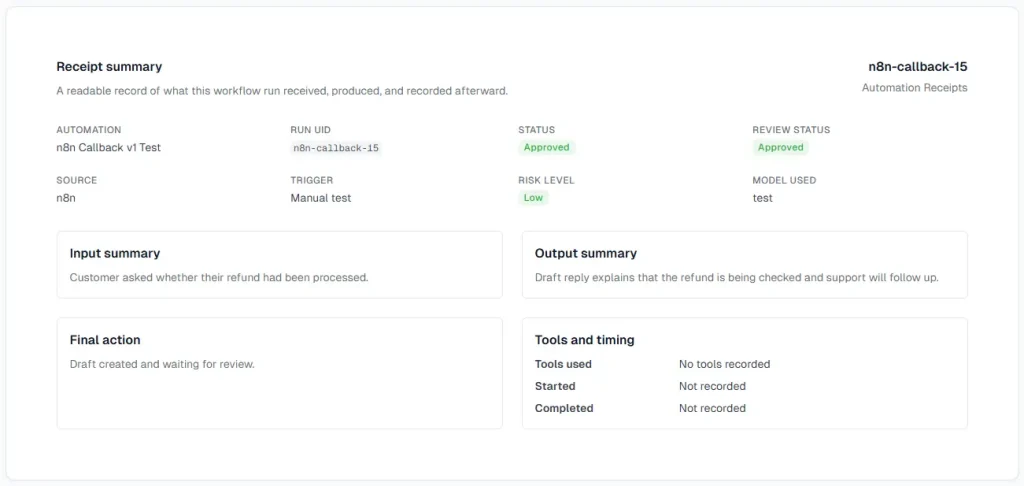
The simplest version is one HTTP request from n8n to Automation Receipts. That request creates a receipt with the automation name, run ID, trigger, input summary, output summary, status, review state, and timeline events. That alone is useful because you get a readable record of what the workflow did.
A receipt can now include an optional callback_url. When a human saves a review action in Automation Receipts, the review is saved first. Then Automation Receipts can send a small result payload back to the workflow that created the receipt. If the callback fails, the review still stays saved, and the receipt records the callback failure.
Automation Receipts is not the boss of n8n. It is the receipt and review layer beside the workflow. It records what happened, gives a human a place to review it, and can send the decision back when the workflow wants to continue.
The tested n8n and Automation Receipts callback flow
Here is the actual pattern that worked.
The n8n workflow used these nodes:
Manual Trigger
↓
Edit Fields
↓
HTTP Request
↓
Wait
↓
Show Review Result
The Edit Fields node created some simple test data, such as an email summary, an AI reply summary, and a final action note. The HTTP Request node called the Automation Receipts API at:
https://automationreceipts.com/api/v1/runsThe JSON body included the normal receipt fields, plus the callback URL from n8n:
{
  "automation_name": "n8n Callback v1 Test",
  "run_uid": "n8n-callback-{{$execution.id}}",
  "source_type": "n8n",
  "trigger_type": "manual_test",
  "status": "needs_review",
  "risk_level": "low",
  "input_summary": "{{$json.email_summary}}",
  "output_summary": "{{$json.ai_reply_summary}}",
  "model_used": "test",
  "approval_required": true,
  "approval_status": "pending",
  "final_action": "{{$json.final_action}}",
  "callback_url": "{{$execution.resumeUrl}}"
}
After the HTTP Request node created the receipt, n8n reached the Wait node and paused. I opened the receipt in Automation Receipts, clicked Approve, and added a short note. Automation Receipts saved the review, posted the result back to the n8n resume URL, and the workflow continued.
The final node received this shape:
[
  {
    "review_status": "approved",
    "review_note": "yeehaa!",
    "receipt_url": "https://automationreceipts.com/runs/16"
  }
]
Inside the final n8n node, those values came from:
{{$json.body.review_status}}
{{$json.body.review_note}}
{{$json.body.receipt_url}}
That little body detail is now in the Automation Receipts n8n docs because it came directly from the live test. There is also a downloadable starter workflow for the callback flow here: Automation Receipts n8n docs.
What can you connect n8n to?
n8n has a broad set of integrations, and the official integrations directory currently lists 1,784 integrations. The exact number will change, but the useful point is the range. It covers normal business apps, databases, developer tools, AI services, communication tools, spreadsheets, and general utility nodes: n8n integrations.
The common examples are easy to understand: Google Sheets, Gmail, Slack, Airtable, MySQL, Postgres, Discord, Telegram, GitHub, and HTTP Request. The AI side has also grown quickly, with categories around agents, chains, embeddings, language models, memory, tools, vector stores, and related pieces. For a solo builder, the combination of normal app automation plus direct API calls is the interesting bit.
That’s why n8n feels useful for small practical workflows. You can connect a few standard services, then use HTTP Request whenever your own app or a less common service needs to be part of the chain. Automation Receipts is a good example of that pattern. It does not need a native n8n node to be useful. It just needs an HTTP Request node and a JSON payload.
n8n pricing and self-hosting
Pricing changes, so check the official page before making any decisions. At the time I checked, n8n Cloud pricing was based on workflow executions rather than charging per step, and the pricing page said all plans include unlimited users, unlimited workflows, and every integration. The annual-billing prices listed were Starter at €20/month for 2.5K workflow executions, Pro at €50/month for 10K workflow executions, and Business self-hosted at €667/month for 40K workflow executions: n8n pricing.
For solo builders, the practical question is not just “what does it cost?” It’s “who is responsible for keeping it alive?” n8n Cloud is cleaner if you don’t want another service to maintain. Self-hosting is attractive if you already run servers, you are comfortable with backups and updates, and you want more control over where your workflows and credentials live.
There is also a licensing point to understand. n8n uses a fair-code model with the Sustainable Use License and an Enterprise License, rather than a plain old MIT-style open source license. The license allows free use, modification, derivative works, and redistribution with restrictions, including limits around commercial redistribution and providing it to others as a paid hosted product: n8n Sustainable Use License.
For normal internal use, self-hosting can make a lot of sense. If you’re building something commercial around n8n itself, read the license carefully instead of assuming it works like a permissive open source project.
Competitors and alternatives
n8n sits in a crowded area, but each tool has a different feel. Zapier is probably the mainstream name most people know. It has a large app ecosystem, and Zapier says it connects to more than 9,000 apps. If you want polished SaaS automation and you don’t want to think too much about hosting, Zapier is often the obvious comparison point: Zapier pricing.
Make is another big alternative. It has a visual scenario builder and is strong for people who like seeing the flow of modules and routers. Make’s pricing page explains that each module action in a scenario counts as one credit, so the pricing model asks you to think about how many module actions your automations perform: Make pricing.
Pipedream feels more developer-facing. Its docs describe workflow pricing around compute credits, with one credit per 30 seconds of compute time at the default memory level for workflow segments. It is a good option if you are comfortable closer to code and APIs, and you want event-driven workflows with a developer tool feel: Pipedream pricing docs.
IFTTT sits more on the consumer and smart-home side of the world. Its own plans page frames Free as a first step into automations, Pro for multiple smart devices and multi-action applets, and Pro+ for advanced features such as filter code and developer tools: IFTTT plans.
The way I would position n8n is this: it is more technical than Zapier, more workflow-shaped than a pile of scripts, and more approachable than writing every internal integration yourself. It gives you a canvas without hiding the fact that data, APIs, and HTTP still matter.
Things I liked
The biggest thing I liked was that the workflow stayed visible. I could see the trigger, the data-prep step, the HTTP call, the wait point, and the final result. That’s useful when you are building something that needs to be trusted. A visual canvas does not magically make a workflow correct, but it does make the chain easier to inspect.
I also liked how natural the HTTP Request node felt. Automation Receipts is just a JSON API from n8n’s point of view. There was no need for a custom n8n node or a special integration. Add the endpoint, add the bearer token, add the JSON body, and the receipt appears.
The Wait node was the feature that turned a basic logging flow into a proper review loop. A workflow that can pause for a human decision and continue afterward is much more useful than a workflow that just fires and forgets. It means n8n can run the process, while Automation Receipts keeps the readable review record.
Things that confused me at first
The no-save-button-per-node thing was the first small UI surprise. It makes sense once you get used to it, but if you come from older admin panels and form-heavy tools, you may expect every panel to have its own save button. In n8n, you edit the node, close it, and save the workflow.
Expressions also take a bit of practice. It is not enough to know that a field exists somewhere. You need to know where it exists in the current node’s incoming JSON. That is how I ended up with {{$json.body.review_status}} instead of {{$json.review_status}}.
The Wait node resume flow is another thing that only really made sense after testing. Reading about $execution.resumeUrl is useful, but seeing n8n pause, Automation Receipts send a callback, and the workflow continue is what made it click. Some tools only become clear once you build the smallest real version of the thing you care about.
Screenshot notes for the final article
I would add screenshots in a few places once this is published on Old Stack Journal. The full workflow canvas should come near the start so readers can see the overall shape. The HTTP Request node deserves its own screenshot because that is where the Automation Receipts API call becomes concrete.
The Wait node screenshot should show the webhook-style resume setup. Then I would show the receipt inside Automation Receipts waiting for review, the review action, and the callback status card showing HTTP 200. Finally, I would include the final n8n node output with review_status, review_note, and receipt_url.
Those screenshots will make the article much stronger because the whole point is that this was not an imaginary integration. It was a real workflow, with n8n waiting and Automation Receipts sending the result back.
Final thoughts
n8n did not make me want to automate everything. That’s usually where automation gets silly. What it did do was make a few specific workflows feel more realistic: receive something, process it, call an API, pause for review, and continue with the result.
That’s exactly where Automation Receipts fits. n8n can run the workflow. Automation Receipts can keep the readable receipt beside it. When a human decision matters, the receipt can now send that decision back to the workflow.
The useful loop is simple enough: workflow, receipt, review, continue. That’s the part I care about, and n8n made it practical enough to test for real.