In this article
- Start by automating movement, not judgement
- A practical WordPress automation shape
- Why WordPress works well as the review surface
- Use the smallest permissions you can get away with
- Draft-only automation is a good default
- Record what the workflow actually did
- Where n8n, webhooks and AI fit
- A content workflow example
- A business workflow example
- What I would not automate first
- How much automation is enough?
- What I’d do next
Question: How do you automate a WordPress workflow without losing human review?
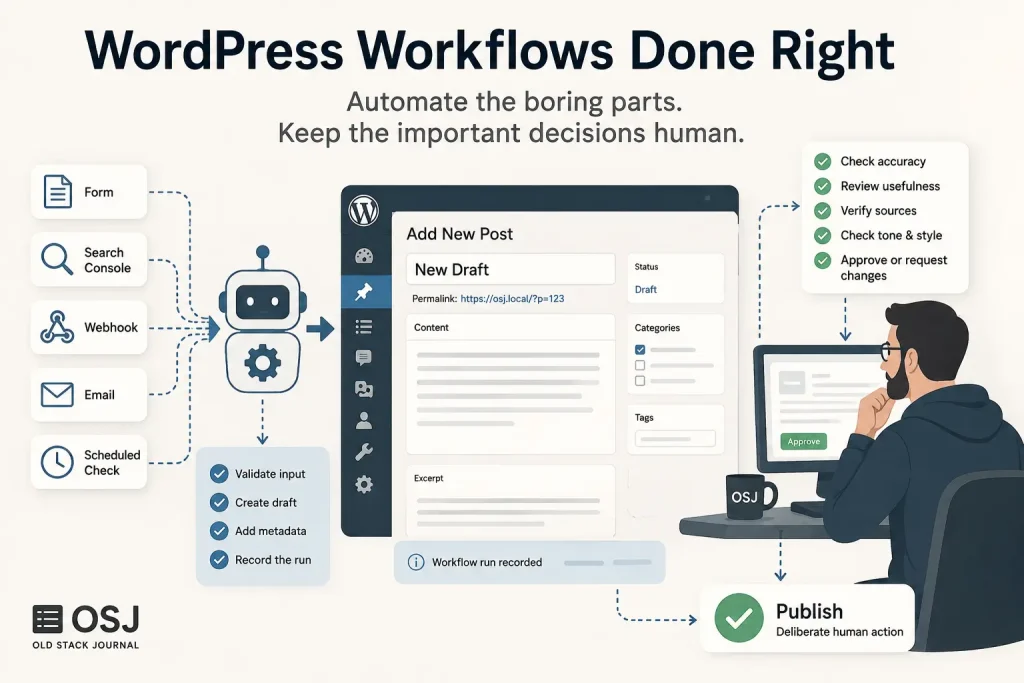
The useful way to automate a WordPress workflow is to automate the repetitive movement of work — collecting inputs, creating drafts, filling metadata, recording what happened, and notifying the right person — while keeping judgement-heavy steps such as approval, security review, factual checking, and publishing under human control. WordPress is a good surface for this because tools can create and update structured content through its APIs without needing permission to publish everything automatically.
If you’re new to the idea, I’ve already written a plain-English explainer on what a WordPress workflow is. This article is the next step: where automation actually helps, where it starts getting risky, and how I’d structure a workflow so a useful tool doesn’t quietly become an unattended publishing machine.
Start by automating movement, not judgement
The easiest mistake is to start with the most dramatic part of the workflow: “Can AI write the article and publish it for me?” Technically, you can build systems that do that. I just don’t think that’s the most useful place to begin.
A normal WordPress workflow has a lot of small mechanical steps around the actual decision-making. Something arrives. A draft gets created. A title, excerpt, category or source note gets added. Someone needs to know the draft exists. A later step needs a record of what happened. Those are good automation jobs because the expected result is fairly clear.
The judgement-heavy parts are different. Is the article actually useful? Is the claim correct? Does the code need testing? Should this appear on the front page? Is the tone right? Is the source trustworthy? Should the post be published at all? Those questions are much harder to turn into safe automatic rules.
That gives me a simple line:
- automate repetitive movement and bookkeeping;
- assist with drafting and analysis;
- keep approval and publishing deliberate.
That’s less exciting than “hands-free content engine,” but it’s also much easier to trust.
A practical WordPress automation shape
A useful workflow can be surprisingly small:
- Something triggers the workflow. This might be a form submission, Search Console export, webhook, scheduled check, email, internal tool, or manual button.
- The workflow validates the input. Required fields should exist, URLs should look sensible, and obviously broken input should stop here rather than becoming a strange WordPress post.
- WordPress receives a draft. The workflow creates a post with draft status rather than publishing it.
- Metadata is filled in. Category, tags, excerpt, source notes, internal-link suggestions or private workflow data can be attached where useful.
- The run is recorded. Save enough information to know what triggered it, what it created, whether anything failed, and what needs review.
- A human reviews the result. This is where the draft gets checked for usefulness, accuracy, security, style and whether it should exist at all.
- Publishing remains a separate action. The draft becomes public only after someone deliberately approves it.
That structure works for content, but it also works for a lot of boring business processes that happen to use WordPress as the admin surface.
Why WordPress works well as the review surface
WordPress is useful here because it already gives you a content model, permissions, revisions, drafts, an editor, categories, tags and a familiar admin area. You don’t necessarily need another dashboard just because a workflow has an API in the middle.
A small automation can do the machine-friendly part, then hand the result back to WordPress where a person can inspect it. For a solo builder or small team, that can be simpler than building a separate approval application around every workflow.
This is roughly the thinking behind the manual social posting desk I built for Old Stack Journal. The system helps prepare the work, but the final action stays manual because that’s the part where context and judgement matter.
Use the smallest permissions you can get away with
If an outside tool needs to talk to WordPress, I would not give it broad administrator access just because that’s convenient during setup. The safer pattern is a dedicated user or credential with only the permissions required for the job.
For programmatic WordPress access, Application Passwords can be useful because they give applications a revocable credential without sharing your normal account password. That still doesn’t mean every integration needs permission to publish, install plugins or change site settings. If the workflow’s job is to create reviewable drafts, then draft creation is the capability I’d design around.
This is also why I like workflow endpoints that are intentionally narrow. An endpoint called “create a draft from this structured payload” is easier to reason about than handing an automation broad access to do anything WordPress can do.
Draft-only automation is a good default
Publishing is where a harmless automation mistake becomes public.
A malformed excerpt is annoying. A duplicated tag is untidy. A bad internal note is easy to fix. An incorrect article published automatically, a security-sensitive code change pushed live, or a customer-facing page changed without review is a different class of problem.
So for content workflows, I’d make draft the default status and require a separate human action to publish. Even when the automation has been reliable for months, that boundary is useful because the cost of one bad run is much lower.
The same principle applies outside editorial work. If an automation can prepare a refund, account change, invoice, deployment or customer message, it can often prepare the action and leave the final commit to a person.
Record what the workflow actually did
One weakness of small automations is that they work beautifully until six weeks later when you’re trying to remember why a post exists or which tool changed something.
I’d record at least:
- what triggered the run;
- when it ran;
- what input it received;
- what WordPress object it created or changed;
- whether the run succeeded or partially failed;
- whether human review is still required;
- any external IDs needed to trace the job later.
You don’t need an enterprise audit platform for this. A small readable receipt is often enough. That’s the idea behind Automation Receipts and the related guide on what an n8n workflow should record after it runs.
The point isn’t paperwork. It’s being able to answer “what happened?” without digging through three dashboards and a terminal history.
Where n8n, webhooks and AI fit
You can build this kind of workflow with plain PHP, a small custom plugin, n8n, Make, Zapier, a server-side script, or whatever tool already fits your setup. The important part is the shape of the workflow, not collecting automation products.
A webhook is useful when something outside WordPress needs to signal that work is ready. n8n is useful when several services need connecting and you want visible workflow steps. A custom WordPress plugin makes sense when the logic belongs close to the site and you want a narrow admin interface. AI can help classify, summarise, suggest tags, draft copy, or turn rough notes into a first pass.
None of those tools should remove the review boundary just because they make it technically possible.
I went into the mechanics of webhooks, AI steps and run records in a practical look at n8n workflows, webhooks, AI steps and receipts.
A content workflow example
Imagine a small publishing workflow built around Search Console data.
A weekly export is analysed for useful query clusters. The analysis identifies a genuine gap. The system checks the WordPress content map for an existing article. If there isn’t a good match, it prepares a draft with a question-style title, direct answer, source notes, category and suggested internal links.
That is already a lot of useful automation.
But I still want a person deciding whether the search signal deserves an article, whether the article sounds like the site, whether the internal links make sense, and whether the final post should be published. Search data can suggest the work. AI can help prepare the work. Neither should decide the editorial direction by itself.
That distinction is especially useful for a small site because it prevents automation from turning “we found a query” into “we must publish another page.”
A business workflow example
The same pattern can help a non-developer business owner.
Suppose a website has a quote-request form. Instead of sending a plain email and hoping someone deals with it, the form could trigger a workflow that validates the submission, creates a private WordPress record, assigns a status, stores the source, adds a follow-up date, and alerts the right person.
The workflow hasn’t made the business decision. It has just made the handoff harder to lose.
That is the kind of automation I find more interesting than trying to make every process autonomous. A small workflow that reliably moves work to the next sensible place can save more frustration than a complicated “agent” that tries to make decisions nobody asked it to make.
What I would not automate first
I’d be cautious about fully automating:
- publishing public articles;
- deleting or overwriting existing content;
- changing themes, plugins or site settings;
- approving security-sensitive code changes;
- sending important customer communications without review;
- making irreversible account or billing changes;
- any action where the cost of a plausible wrong answer is high.
These may eventually have automation around them, but I’d start by generating a recommendation, draft, preview or pending action rather than committing the change automatically.
How much automation is enough?
A useful test is to ask what the annoying repeated step actually is.
If the problem is “I keep copying form submissions into WordPress,” automate the copying. If the problem is “I forget to fill in source notes and tags,” automate that preparation. If the problem is “I can’t tell whether yesterday’s n8n run succeeded,” improve the receipt. If the problem is “I spend an hour every week finding possible article gaps,” automate the first analysis pass.
Don’t build a twelve-step system if the useful improvement is one reliable handoff.
That is where WordPress automation works best for me: not as a replacement for the person running the site, but as a practical layer that moves repetitive work into the right place for the next decision.
What I’d do next
If you want to automate a WordPress workflow, pick one repeated process and draw it as four boxes: input → preparation → human review → final action. Then automate only the preparation steps you can describe clearly and test repeatedly.
Keep credentials narrow, make drafts the default for public content, record what each run did, and leave the irreversible judgement-heavy step separate. Once that small workflow is boringly reliable, add the next useful piece. That tends to produce better systems than starting with a promise that the whole process should run itself.