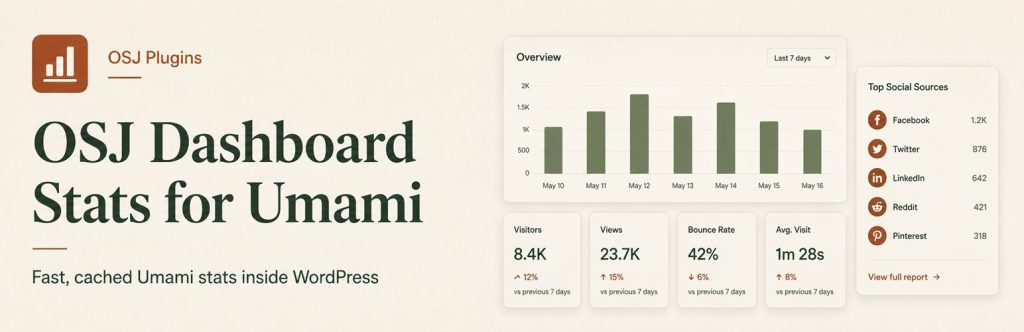
Question: How do you view Umami analytics inside WordPress?
You can view Umami analytics inside WordPress by connecting the OSJ Dashboard Stats for Umami plugin to your Umami Cloud or self-hosted account. It adds cached, movable dashboard widgets for the figures most site owners check regularly, while Umami remains the analytics system and WordPress remains the place where publishing work happens.
This isn’t an attempt to rebuild a full analytics platform inside wp-admin. It’s a focused WordPress admin tool for people who already use Umami and want the useful numbers close to the place where they write, edit, and manage their site.
What does the Umami WordPress plugin show?
OSJ Dashboard Stats for Umami adds normal WordPress dashboard panels for:
- Today
- Last 7 Days
- This Month
- All Time
- Top Pages
- Referrers
- Social Traffic
- Right Now
Because they’re standard WordPress dashboard widgets, you can drag them into a useful order, collapse the ones you don’t need, and hide them through the normal screen options.
The goal isn’t to copy every Umami report. It’s to answer the quick questions that come up while you’re already working in WordPress: did anyone read the new article, which pages are getting attention, where did visitors come from, and is anyone on the site now?
Why are the dashboard widgets cached?
The panels load after the main WordPress dashboard appears, and normal statistics are cached in WordPress transients.
That matters because an analytics widget shouldn’t make the whole admin dashboard wait for several remote API requests. The first private version worked, but splitting the figures into separate draggable panels meant the dashboard had too many calls to wait for.
Loading WordPress first, then fetching cached panel output through AJAX, made the admin area feel much more sensible.
This is a small implementation detail, but it reflects the kind of WordPress development I find useful: solve a real admin problem without turning the site into a much larger system than it needs to be.
Can it add the Umami tracking script too?
Yes, but that part is optional and disabled by default.
When enabled, the plugin can add the Umami tracking script to public WordPress pages. You can configure:
- the Umami tracker script URL
- the Website ID
- whether the script loads in the head or footer
- whether logged-in administrators are excluded
- whether all logged-in users are excluded
For Umami Cloud, the common tracker script URL is:
https://cloud.umami.is/script.jsFor a self-hosted Umami installation, use the tracker URL supplied by your own instance.
The plugin doesn’t add public credits, badges, “powered by” messages, or OSJ backlinks. It only adds the tracker when the site administrator explicitly enables that setting.
How do you connect it to Umami Cloud?
For Umami Cloud, the usual settings are:
API base URL: https://api.umami.is/v1
Auth method: API key header
You then add your API key and website ID under:
Settings → OSJ Dashboard StatsAfter saving the connection, the dashboard panels can request the selected site’s data from Umami.
For a self-hosted installation, use the API and tracker URLs from that installation instead. The exact addresses depend on where and how you host Umami.
What doesn’t the plugin do?
This isn’t a Google Analytics replacement built inside WordPress, and it isn’t trying to become one.
It doesn’t recreate every Umami report, promise traffic growth, add public backlinks, or send your analytics data to Old Stack Journal. It’s a focused admin utility that connects to the Umami service you choose and presents a practical subset of its figures in wp-admin.
That narrower scope is deliberate. A useful WordPress workflow should reduce repeated work without adding another complicated system to maintain. In this case, Umami continues to collect and store the analytics. WordPress simply becomes a convenient place to glance at them.
Who is this useful for?
The plugin is useful when you:
- run a WordPress site
- already use Umami Cloud or a self-hosted Umami instance
- check wp-admin more often than a separate analytics dashboard
- want quick traffic figures without a large reporting interface
- want optional tracker insertion without editing theme files
- care about caching and keeping the dashboard responsive
It’s especially handy for solo site owners and small publishing teams. The numbers are available where the next content decision is already being made.
Who should skip it?
Skip it when you don’t use Umami, need detailed ecommerce attribution, want complex funnel reporting inside WordPress, or expect a plugin to replace the full analytics service.
The plugin assumes Umami remains the analytics tool. WordPress gets a practical admin view rather than a second analytics product.
What about privacy?
The plugin connects only to the Umami API endpoint configured by the WordPress administrator. When front-end tracking is enabled, visitor analytics data is sent to that configured Umami service.
It doesn’t send analytics data to Old Stack Journal, and it doesn’t add public OSJ credits or backlinks.
Site owners still need to make sure their analytics setup, consent choices, and privacy policy fit their own site and local requirements.
Where can you download it?
You can download OSJ Dashboard Stats for Umami from the official WordPress plugin directory, or search for “OSJ Dashboard Stats for Umami” from the Plugins screen inside WordPress.
Why I built it
I like Umami because it gives me the site figures I actually check without making analytics feel like another job. I also spend a lot of time inside WordPress.
For Old Stack Journal, the common questions are simple: did anyone read the new post, where did they come from, and what is getting attention today?
I didn’t need another large reporting screen. I needed a few cached dashboard panels that wouldn’t hold up wp-admin while they loaded.
That’s what OSJ Dashboard Stats for Umami is for: keep Umami in charge of analytics, keep WordPress in charge of the publishing workflow, and put the useful numbers where the work already happens.