In this article
- Start with the dates, not the warning label
- Check the page response from the command line
- Compare the normal and Googlebot-labelled responses
- Check redirects and canonical URLs together
- What “Sitemap couldn’t fetch” actually means
- Test the sitemap with a crawler-labelled request
- Check robots.txt as well
- A sensible order of operations
- Don’t repair stale data
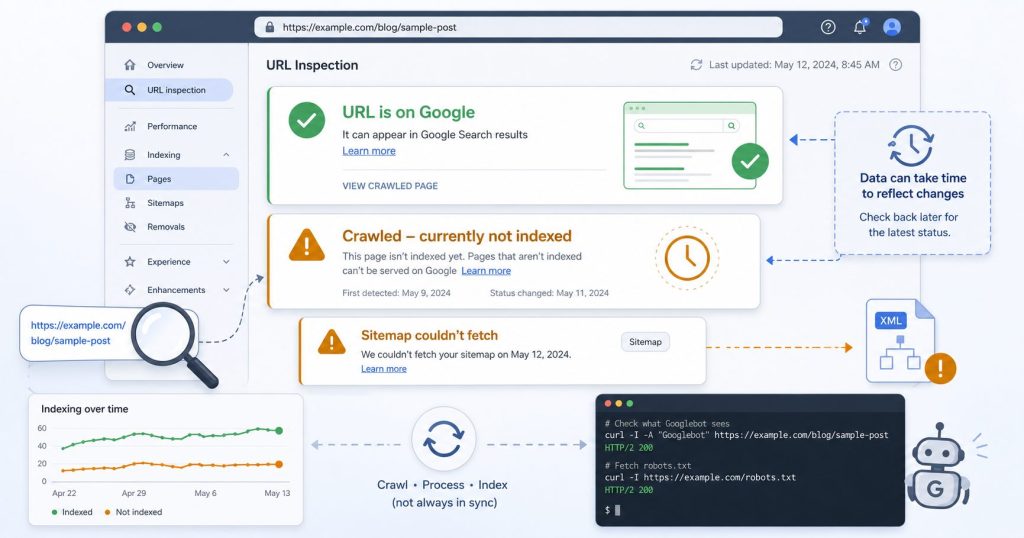
Question: Why can Google Search Console say a URL is on Google while the same URL appears under “Crawled – currently not indexed,” and what should you check when the sitemap also says “Couldn’t fetch”?
The two messages can appear together because Search Console’s URL-level inspection and its site-wide reports don’t always refresh at the same time. If URL Inspection says the exact URL is on Google, the selected canonical is correct, and the indexed-page details look normal, the page is generally indexed even if it still appears in an older “Crawled – currently not indexed” example list.
Check the dates before changing anything. For a sitemap error, test the exact sitemap URL, redirects, response headers, response body, and crawler-facing response before assuming the site has a wider indexing problem.
A recent TechSEO help thread described this exact pattern. Several URLs appeared as indexed in URL Inspection while those same URLs remained in the Page Indexing report under “Crawled – currently not indexed.”
That’s confusing on any site, but it feels especially serious on a young site where every indexing change is being watched closely.
The useful response isn’t to resubmit everything or start rewriting pages. First separate three different questions:
- Is this exact URL currently in Google’s index?
- Can Google fetch the live page and its sitemap now?
- Is a bulk Search Console report showing older processed data?
Start with the dates, not the warning label
Open the Page Indexing report and note its Last updated date. Then inspect one of the affected URLs and compare:
- the indexed status;
- the last crawl time;
- the Google-selected canonical;
- the user-declared canonical; and
- whether indexing is allowed.
The Page Indexing report is a processed, site-wide view. Its example table isn’t a live transaction log. URL Inspection is the better place to investigate one specific URL, while Test live URL checks whether Google can fetch the page as it exists now.
That distinction matters.
The normal URL Inspection result describes Google’s indexed version of the page. The live test checks the current response, but a successful live test doesn’t itself prove that the page is indexed. It proves that the current page can be fetched and appears eligible for indexing.
If the bulk report was last updated before the URL’s more recent crawl or indexing event, the contradiction is probably reporting lag. Give the report time to catch up rather than trying to repair a page that’s already indexed.
Google also says recrawling can take from a few days to a few weeks. Repeatedly requesting indexing doesn’t make the same URL move faster.
Young sites often need more patience because Google is still discovering their structure, internal links, update patterns, and overall value.
Check the page response from the command line
A browser can hide useful details. It follows redirects, renders friendly error pages, and may receive a different response from a CDN or security layer.
Start with a plain HTTP check.
URL='https://example.com/page/'

curl -sS -L -D - -o /dev/null "$URL"
Look for:
- a final
200status; - an unexpected
301,302,403,429, or5xx; - the final hostname and protocol;
- an HTML
Content-Type; - an
X-Robots-Tag: noindexheader; - CDN, cache, or firewall headers that explain inconsistent responses.
To print only the most useful values:
curl -sS -L -o /dev/null \
  -w 'status=%{http_code}\nfinal=%{url_effective}\ntype=%{content_type}\n' \
  "$URL"
A normal result might look like this:
status=200
final=https://example.com/page/
type=text/html; charset=UTF-8
Then inspect the HTML for robots and canonical directives:
curl -sS -L "$URL" |
  grep -iE '<meta[^>]+(robots|googlebot)|<link[^>]+canonical'
You want the canonical to point to the intended indexable URL. You don’t want a noindex directive in either the HTML or the response headers.
Also check that the page isn’t returning a soft error. A soft error is a page that returns an HTTP 200 response while showing something like:
- a “not found” message;
- a login screen;
- a maintenance notice;
- an empty template;
- a JavaScript error;
- a bot challenge.
Search Console may be able to request the URL while still deciding that the returned content isn’t a useful indexable page.
Compare the normal and Googlebot-labelled responses
Some indexing problems only appear when a CDN, web application firewall, anti-bot plugin, or hosting rule sees a crawler-like user agent.
A quick comparison can expose that difference.
GOOGLEBOT_UA='Mozilla/5.0 (compatible; Googlebot/2.1; +http://www.google.com/bot.html)'

curl -sS -L -A "$GOOGLEBOT_UA" -D - -o /dev/null "$URL"
You can also compare the final status, URL, content type, and downloaded size:
curl -sS -L -A "$GOOGLEBOT_UA" -o /dev/null \
  -w 'status=%{http_code}\nfinal=%{url_effective}\ntype=%{content_type}\nbytes=%{size_download}\n' \
  "$URL"
Compare that output with the ordinary request.
A big difference in status code, final URL, content type, or response size may point to crawler-specific blocking.
Search Console’s live testing tools use the separate Google-InspectionTool user agent, so it can be useful to test that label as well:
INSPECTION_UA='Mozilla/5.0 (compatible; Google-InspectionTool/1.0)'

curl -sS -L -A "$INSPECTION_UA" -D - -o /dev/null "$URL"
These commands do not turn your computer into Googlebot. User-agent strings can be copied by anyone, and your request still comes from your own IP address.
The test only shows whether your server changes its response when it sees the supplied user-agent label.
To verify real Googlebot requests in server logs, use Google’s crawler verification guidance, published IP information, or reverse-DNS verification. Don’t treat every request that calls itself Googlebot as genuine.
Check redirects and canonical URLs together
Redirects and canonicals often explain apparent indexing contradictions.
For example, you may inspect:
https://example.com/pagewhile Google indexes:
https://example.com/page/Or the inspected URL may redirect from HTTP to HTTPS, from www to the bare domain, or from an old path to a new one.
That isn’t automatically a problem. The important part is consistency.
Check the full redirect chain:
curl -sS -I -L "$URL"Then confirm that:
- the final URL returns
200; - the canonical points to that final URL;
- internal links use the preferred version;
- the sitemap uses the preferred version;
- the Search Console property covers the correct host and protocol.
A URL may appear under one status while Google has indexed a different canonical version. URL Inspection’s Google-selected canonical field is important here.
What “Sitemap couldn’t fetch” actually means
A sitemap is a discovery hint, not an indexing switch.
Google can discover pages through internal and external links even when a submitted sitemap has a temporary problem. A valid sitemap also doesn’t guarantee that every listed URL will be crawled or indexed.
In Search Console, a top-level Couldn’t fetch status means Google couldn’t retrieve the sitemap file when the Sitemaps report processed it.
On a new site, that may clear after another attempt, but it’s still worth testing the file rather than assuming every error is reporting lag.
Use the exact sitemap URL that was submitted:
SITEMAP='https://example.com/sitemap.xml'

curl -sS -L -o /dev/null \
  -w 'status=%{http_code}\nfinal=%{url_effective}\ntype=%{content_type}\nbytes=%{size_download}\n' \
  "$SITEMAP"
Then print the first few lines of the response:
curl -sS -L "$SITEMAP" | sed -n '1,12p'A healthy result normally has:
- a final
200response; - XML content rather than an HTML error or challenge page;
- the expected hostname and HTTPS URL;
- no authentication requirement;
- no redirect loop;
- no intermittent
403,429, or server error; - valid sitemap XML containing URLs from the correct property.
You can also validate the XML locally:
curl -sS -L "$SITEMAP" | xmllint --noout -No output usually means the XML parsed successfully. An error message points to malformed XML or a response that isn’t XML at all.
Test the sitemap with a crawler-labelled request
Repeat the sitemap request with the Googlebot-labelled user agent:
curl -sS -L -A "$GOOGLEBOT_UA" \
  -w '\nstatus=%{http_code} type=%{content_type}\n' \
  "$SITEMAP" |
  sed -n '1,15p'
If the browser receives XML but the crawler-labelled request receives an HTML block page, investigate:
- the CDN;
- the firewall;
- the hosting security layer;
- a WordPress security plugin;
- rate limiting;
- country or IP restrictions;
- bot protection rules.
Also check server logs around the time Search Console last tried to fetch the sitemap.
Logs can answer an important question: did Google’s request reach the server at all?
If it did, the status code and response time may reveal a timeout, application error, redirect loop, or security block. If it didn’t, the problem may be happening further upstream.
Check robots.txt as well
A sitemap can be valid while the site’s robots file introduces a separate problem.
Test it directly:
ROBOTS='https://example.com/robots.txt'

curl -sS -L -D - "$ROBOTS"
A simple robots file might include:
User-agent: *
Disallow:

Sitemap: https://example.com/sitemap.xml
The sitemap doesn’t have to be listed in robots.txt if it has already been submitted in Search Console, but including the correct URL gives crawlers another discovery path.
Make sure robots.txt itself doesn’t redirect to an HTML page, return a server error, or accidentally block important sections of the site.
A sensible order of operations
For one or two conflicting URLs, use this order:
- Compare the Page Indexing report’s update date with the URL’s inspection details.
- Confirm that the exact URL says URL is on Google.
- Check the Google-selected canonical.
- Run the live test to confirm the current page can be fetched.
- Check headers, redirects, robots directives, and canonical markup.
- Compare ordinary, Googlebot-labelled, and InspectionTool-labelled responses.
- Test the sitemap URL separately, including its body rather than only its status code.
- Check server logs and security rules if the responses differ.
- Wait for the bulk reports to refresh when all reproducible checks pass.
Escalate the investigation when:
- URL Inspection says the page isn’t indexed;
- the live test fails;
- the canonical points somewhere unexpected;
- the page returns
noindex; - the server intermittently blocks crawler-like requests;
- the sitemap repeatedly returns errors;
- the response body is a challenge or error page;
- the problem continues across multiple report updates.
For a broader, structured diagnosis across crawling, indexing, canonicals, and server responses, SearchTriage is the next place I’d go.
OSJ’s guide to SEO and GEO for small sites also explains why crawlability, clear answers, and useful internal links still matter beyond the immediate Search Console warning.
Don’t repair stale data
The main trap is treating every Search Console label as a current instruction.
Sometimes it is. Sometimes it’s a delayed report describing a state the URL has already left.
Use the specific URL inspection, report timestamps, live fetch, repeatable HTTP checks, and your own server logs together.
If the URL is indexed and the technical checks are clean, the correct fix may be no fix at all. Give the reports time to agree, keep the sitemap accessible, and spend your effort on pages that are genuinely blocked or excluded.